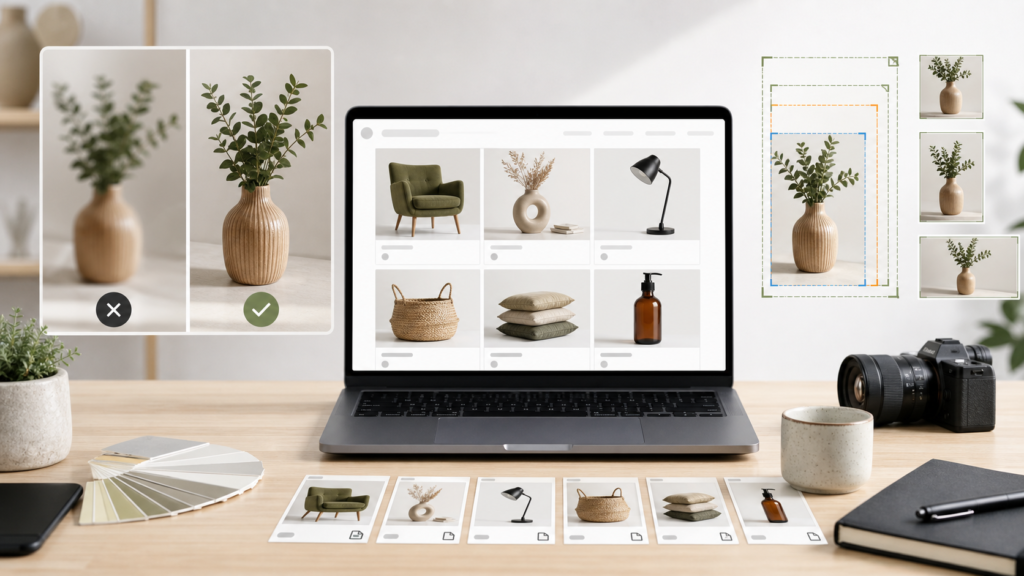
If product photos look sharp on individual product pages but soft in collection grids or other theme sections, the problem is usually sizing, cropping, or theme output rather than the original upload alone. Shopify optimises uploaded media through its CDN, but your store still needs consistent source files and predictable display settings.
Use a consistent aspect ratio
Start by making product photos the same shape, especially for collection grids. A consistent width-to-height relationship keeps products aligned when they sit side by side.
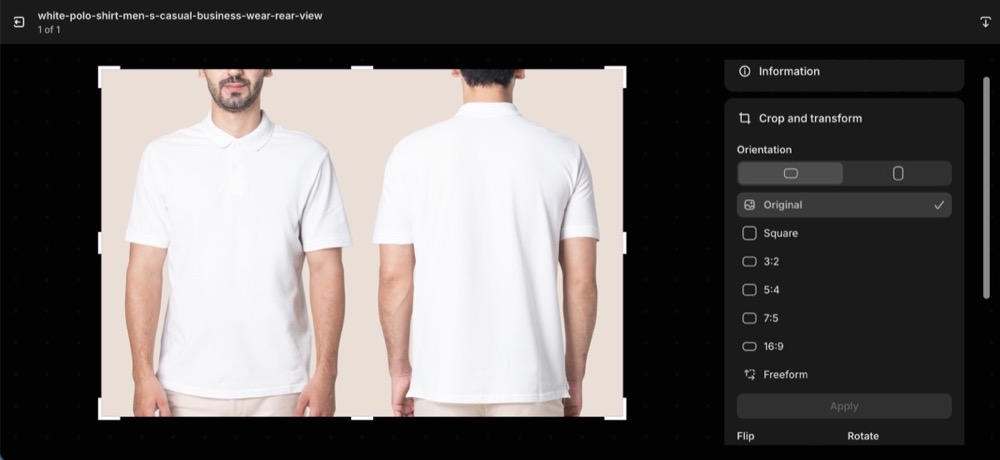
If the source files use mixed ratios, crop them before upload or use Shopify’s built-in media editor. The basic process is:
- Open the media editor:
- From your Shopify admin, go to the media file that you want to edit.
- Click the pencil icon, or click the thumbnail to open the media editor.
- Crop the image:
- In the media editor, click Crop and transform.
- To crop with a custom aspect ratio, click Freeform and adjust the highlighted area by dragging the corners or edges.
- To keep the original aspect ratio, click Original and adjust the size as needed.
- To crop the image into a square, click Square and adjust the size.
- Save your changes:
- Click Apply to crop the image.
- When you’re done making edits, click Save.
Check image size and theme output
Upload product photos at a high enough resolution for the largest place they appear on the store. Shopify’s Help Center guidance for product media says product and collection images can be up to 5000 x 5000 pixels, or 25 megapixels, and that square product images usually display best at 2048 x 2048 pixels.
Bigger is not always better. Oversized files can slow pages down, while undersized files can look stretched in large theme sections. If the same photo looks clear on one template but blurred elsewhere, compare the section’s image dimensions with the original upload.
Theme output matters too. Shopify’s Theme Check guidance on image width and height explains that missing dimensions can affect layout stability, which can hurt the mobile search ranking of stores using that theme. For another performance-focused Shopify media check, see our guide to optimising Shopify video tags for PageSpeed.
What to check first
Fix the source files first: use consistent aspect ratios, upload enough pixels for the largest display area, and avoid needlessly heavy files. Then test the product page, collection grid, and homepage sections separately, because each template can request a different image size.
Author