Shopify has opened a feature preview for customer account improvements until 12 June 2026. For merchants using customer account extensions, this is a short testing window rather than a distant roadmap item.
The preview matters because it changes parts of the customer account experience that extension teams often assume are stable: how extensions sit in the layout, where order actions appear, and how account pages behave on narrower screens. Shopify’s changelog points developers to the preview and its supporting documentation, which cover layout, order actions, extension targets and mobile width changes.
If your Shopify app or store depends on customer account extensions, treat the preview as a regression test. One broken placement can affect a returning customer trying to check an order, download information, start a return or complete another account task.
Start with the extension targets you already use
Begin by listing every customer account extension target your app or store uses today. Do not test from memory. Pull the current extension configuration, list the targets, then match each one against the preview documentation.
This matters because the same extension can feel acceptable in one account view and awkward in another. A block that works near an order summary may not make sense when account content is compressed, reordered or moved into a narrower column.
If your team uses local Shopify CLI workflows for store checks, the approach in our article on using Shopify store auth with Claude or Codex is a useful companion process for quick inspection and test queries.
Check account layout before copy or styling
Layout is the first thing to test because it determines whether everything else is readable. Open the preview account pages with realistic data: a customer with one order, a customer with multiple orders, a cancelled or refunded order, and any account state your store relies on.
For each state, check whether the extension appears near the task it supports. If an extension explains delivery details, it should be close enough to the order information that the customer understands the connection. If it starts a post-purchase action, it should not sit so far down the page that the customer misses it.
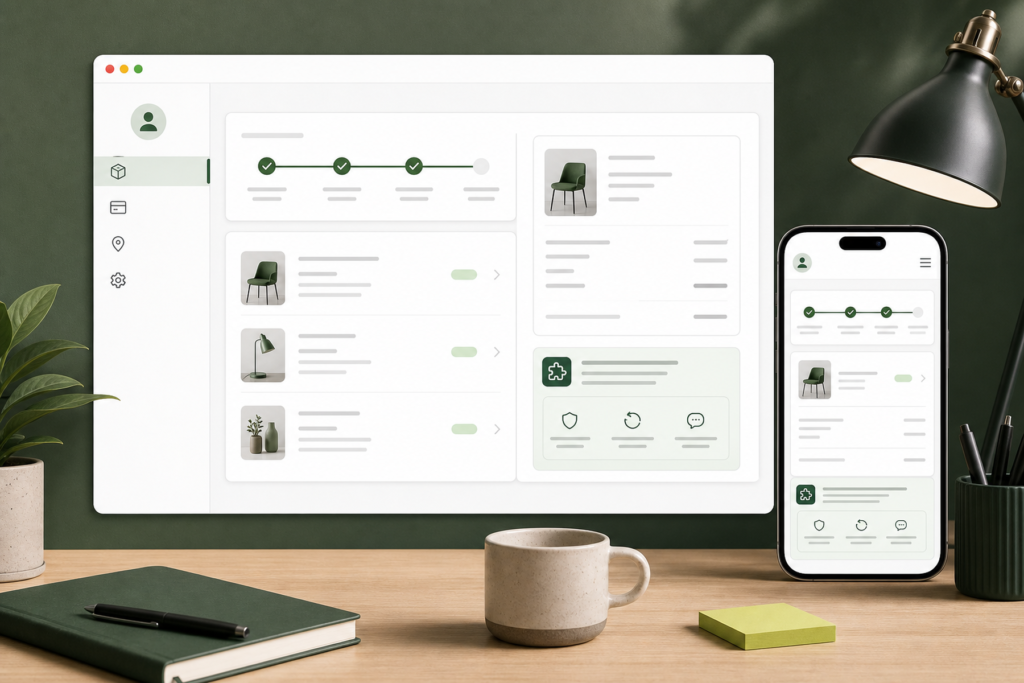
Do not judge this only on a large desktop screen. A customer account is often a post-purchase service screen, and many customers will reach it from email on a phone.
Test order actions as customer journeys
Order actions need more than a visual check. Test each one as a full customer journey. Start from the account page, trigger the action, complete any hand-off, then return to the account view if that is part of the flow.
Watch for three failure modes. First, the action may still appear but no longer sit where customers expect it. Second, the action may compete with Shopify’s own account controls. Third, the action may work technically but leave the customer without clear confirmation.
For merchants, the practical question is simple: can a customer complete the account task without support? If the answer is no, the extension needs adjustment before the preview becomes the default experience.
Mobile width is not a final polish step
Shopify’s preview documentation calls out mobile width, so test narrow screens early. Do not wait until the end of the QA process.
Check text wrapping, button width, spacing around extension cards, and any embedded content. Pay attention to long order names, product names, discount labels, addresses and translated strings. Customer account screens are full of variable content, and a neat test order can hide problems that appear with real customer data.
Also check tap targets. An order action that is easy to click with a mouse may become frustrating on a phone if it sits too close to another control.
Map what needs code changes and what needs content changes
Do not put every issue into the same bucket. Some preview findings are code problems: a target needs changing, a component needs a different layout, or an action needs better state handling. Others are content problems: labels are too long, helper copy assumes the old layout, or confirmation text no longer appears near the action.
Separate these findings as you test. Code fixes may need developer review, app release checks and rollback planning. Content fixes can often move faster, but they still need to be tested in the same preview view.
A practical test checklist
- List every customer account extension target currently used.
- Open the preview with realistic customer and order states.
- Check each extension on desktop and narrow mobile widths.
- Run every order action as a complete customer journey.
- Check long product names, addresses, translations and labels.
- Separate code fixes from content or configuration fixes.
- Record screenshots before and after any change.
- Retest the final account flow before the 12 June preview window closes.
Use the preview window to reduce support risk
The safest outcome is knowing which customer account extensions still work, which ones need adjustment, and which account tasks could create support tickets if left alone.
Shopify’s customer account improvements changelog and the related feature preview documentation give teams the current test surface. Use that surface while it is available, then keep the test notes with the app or store release record so future customer account changes are easier to assess.
Author