Generate Blocks just released version 2.4 (alpha 1). This update makes it easy to control who sees what on your website. Before, you could only use display rules with popup panels. Now, you can use them with any block on your website – not just Generate Blocks, but any WordPress block.
What’s New
The update adds three main things:
- Display rules for all blocks
- Display rules for WordPress menus
- An on/off switch for popup panels
There’s also a nice fix: when you put videos in popup panels, they automatically stop playing when someone closes the panel. This solves an annoying problem that happens in other popup systems.
How to Set Up Display Rules
First step: Create a Condition
To find all your display rules, go to Generate Blocks Pro and then to the Conditions section. This is where users can see and manage all their rules.
It’s not very hard for WordPress to work in our opinions. Take your time to experiement and play with it.
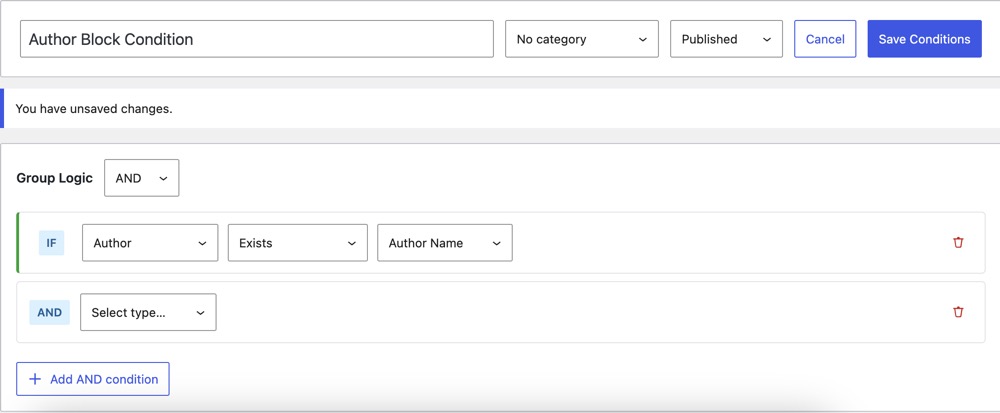
You don’t need to come here every time. They can work with these rules right from any page they’re editing.
Second step: Using the Rules on a Page
Here’s how to use these rules in practice.
To apply conditions to any block:
- Select the desired block
- Navigate to Advanced settings
- Locate the Display Conditions option
- Choose the appropriate condition from the dropdown

For inverse conditions:
- Apply the same condition
- Click the inversion button
This creates complementary visibility settings without requiring separate condition rules.
Easy Ways to Manage Rules
Rules can be edited right from the page being worked on. Just click the pencil icon next to any condition to open a popup window. There, rules can be changed or new ones created without leaving the page.
Users can also click the Generate Blocks icon at the top and select “manage conditions” to see all their rules.
Sharing Rules Between Websites
Rules can be easily moved from one website to another:
- Open the rule to copy
- Click “show JSON format”
- Copy the code
- Go to the other website
- Click import
- Paste the code
These rules run on the server side, which means content isn’t just hidden – it’s not loaded at all when the conditions are met.
Does it work with other kind of blocks?
The display conditions system can even be applied to other blocks outside of the GenerateBlocks eco system. For example it can apply to Kadence Blocks or Native WordPress blocks.
It even works with WordPress menus. Just open any menu item, and the display conditions option is there too.
Compared to Other Plugins
Some block plugins does similar things, but since Generate Blocks now has this feature, there’s no need to install both. Anyone already using Generate Blocks can simply use its condition system.
Author